These days, using HTTPS for cloning Git repositories often leads to repetitive password prompts and token authentication hassles.
For a more secure and seamless workflow — especially during active development or automation. SSH is the recommended approach.
In this post, I’ll walk through how to set up SSH authentication on Windows, connect your public key to GitLab, and finally clone a private repository without needing to re-authenticate every time.
Step 1: Generate Your SSH Key
1. Open Git Bash or Command Prompt
On Windows, open Git Bash or cmd via the Start menu.
2. Run the following command:
ssh-keygen -t ed25519This generates a new SSH key pair:
id_ed25519→ your private key (keep this safe, do not share it)id_ed25519.pub→ your public key (you’ll upload this to GitLab)
By default, keys are saved in the ~/.ssh/ directory.
3. When prompted: just press Enter three times
Enter file in which to save the key:        → [Press Enter]
Enter passphrase (empty for no passphrase): → [Press Enter]
Enter same passphrase again:                → [Press Enter]
That’s it. The key pair is now saved.
Your identification has been saved in /c/Users/YourName/.ssh/id_ed25519
Your public key has been saved in /c/Users/YourName/.ssh/id_ed25519.pub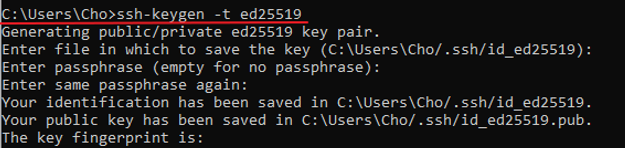
Step 2: Add the Public Key to GitLab
1. Visit your GitLab project page.
You may see a message like:You can't push or pull using SSH until you add an SSH key to your profile.
Click [Add SSH Key].

2. GitLab will redirect you to the SSH Keys settings page.
Click [Add new key] if it doesn’t appear automatically.
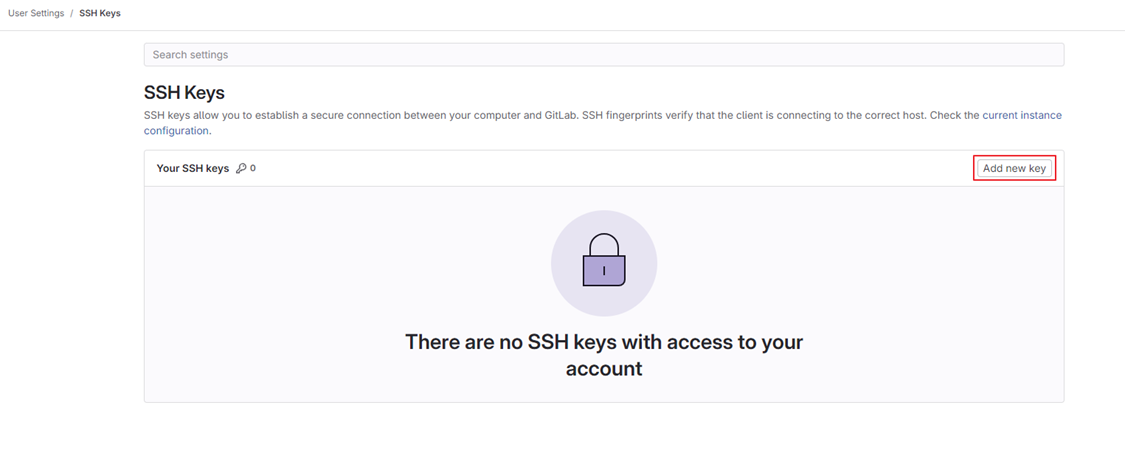
3. Copy your public key.
Run the following command in Git Bash or Command Prompt:
type C:\Users\YourName\.ssh\id_ed25519.pubCopy the entire output (starts with ssh-ed25519).

4. Paste the key into GitLab:
- Key: Paste the copied key
- Title: Name it (e.g.
my-laptop) - Usage type: Leave as
Authentication & Signing - Expiration date: Optional
Then click [Add key].

Step 3: Clone the Project with SSH
Now that your SSH key is registered, you can clone the project securely:
git clone git@gitlab.com:yourgroup/yourproject.git
cd yourproject
Replace with your actual GitLab path.
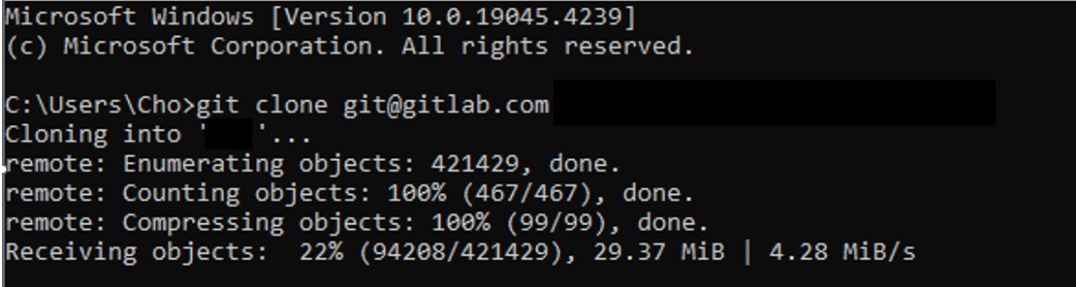
✅ You won't be asked for a username or password — SSH handles authentication.
You're Done
SSH key setup is complete.
You can now pull, push, and clone GitLab repositories securely using SSH.
'💻 개발과 자동화' 카테고리의 다른 글
| Terraform으로 어디서든 동일한 DevOps 환경 재현하기 (2) | 2026.04.10 |
|---|---|
| Keycloak + OAuth2 Integration with Docker (WSL2 + Rancher) (0) | 2025.12.03 |
| [Mssql] Table drop시 FOREIGN KEY 참조로 삭제 불가능 (0) | 2024.06.14 |
| TOMCAT 배포 및 Log 디렉토리 변경 (2) | 2023.08.25 |
| 리눅스 서버에 USB 마운트 및 랜선 접속 방법 (0) | 2023.08.24 |


댓글